Note types
Note types are colour-coded categories that help you organise and prioritise your notes. Each type has a name and a colour that appears on the 3D sticky note and in the Scene Notes Manager.
Default types
Scene Notes ships with five default note types:
| Type | Colour | Use case |
|---|---|---|
| Critical | Red | Game-breaking bugs that prevent progress |
| Bug | Orange | Standard bugs and issues |
| Todo | Yellow | Tasks, reminders, and things to revisit |
| Visual | Green | Art, lighting, and visual polish notes |
| Idea | Blue | Suggestions, improvements, and new ideas |
Info
These defaults cover the most common use cases, but you can modify them or add your own.
Creating custom note types
- Select the Scene Notes Settings asset in the Project window
- In the Inspector, expand the Note Types list
- Click the + button to add a new type
- Enter a name and choose a colour
There is no limit to the number of custom types you can create. Some suggestions for team workflows:
- Audio — for sound-related notes
- Performance — for frame rate and optimisation issues
- Design — for gameplay design feedback
- Placeholder — for temporary content that needs replacing
- QA — for notes specifically from QA testers
Editing existing types
Click on any type in the list to change its name or colour. Changes apply immediately to all existing notes that use that type.
Warning
If you rename a note type, existing notes that used the old name will lose their type association. The notes are preserved but will appear as untyped until you reassign them.
Deleting types
Click the - button next to a type to remove it. Existing notes that used the deleted type will remain in the database but appear as untyped in the manager window.
How types appear in the tool
When creating a note during play mode, the note type dropdown shows all configured types with their colour indicators. Select a type before confirming to categorise the note.
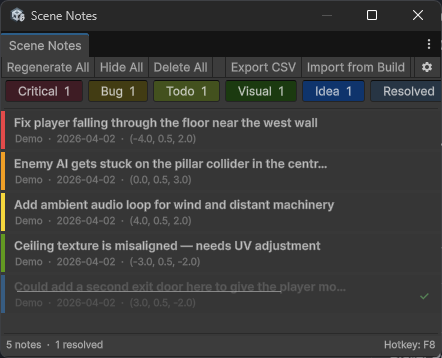
In the Scene Notes Manager window, each note displays its type colour as a dot next to the description. The filter bar lets you show or hide notes by type — useful when you want to focus on critical bugs only, or hide resolved items.
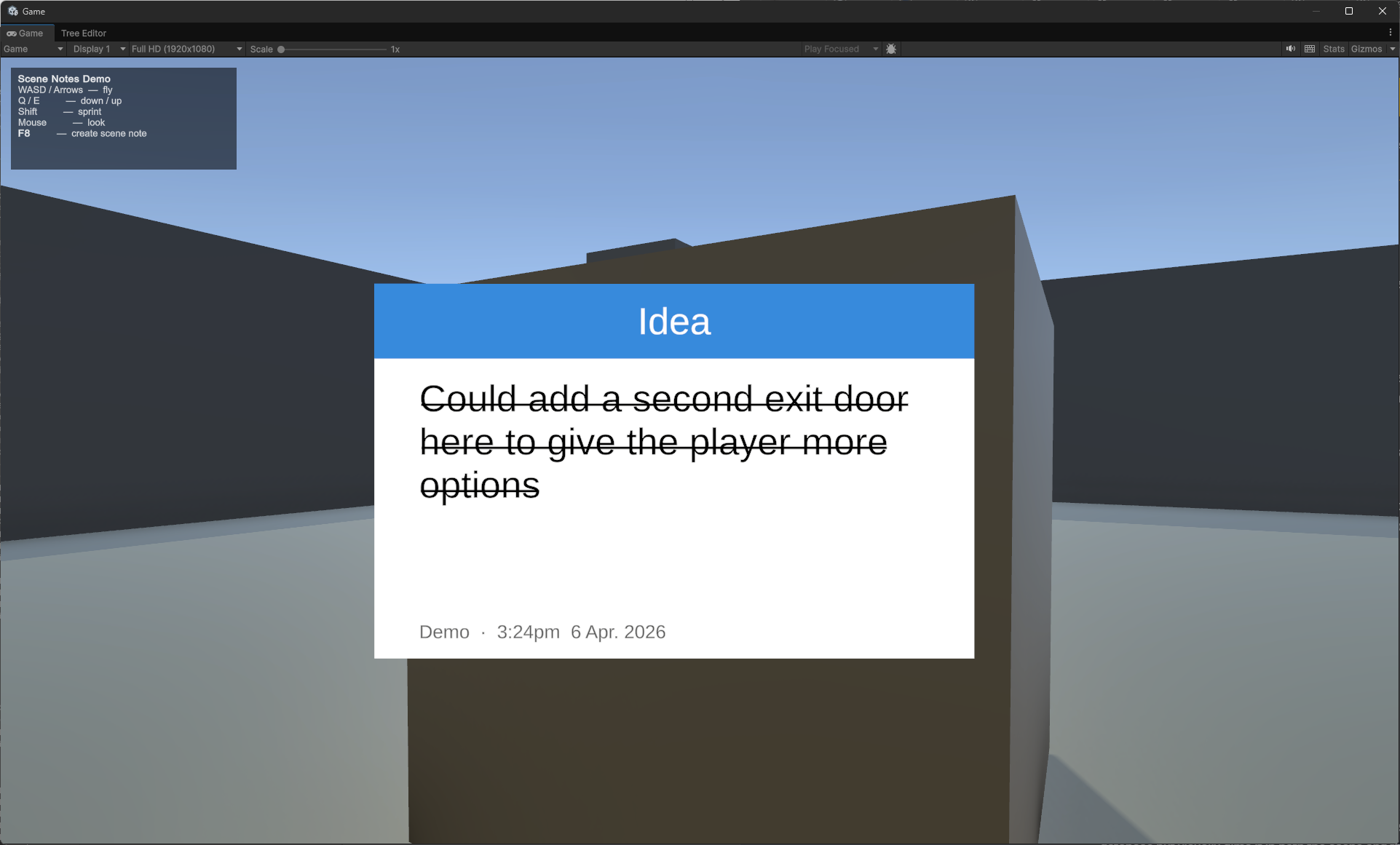
On the 3D note object in the scene, the type colour appears as a header strip across the top of the sticky note, making it easy to identify note categories at a glance from the Scene view.
Resolved status
In addition to types, every note has a Resolved toggle. Marking a note as resolved keeps it in the database but visually dims it in both the scene and the manager window. Use this to track progress without deleting notes.
Resolved notes can be filtered in the Scene Notes Manager. You can show all notes, show only unresolved notes, or show only resolved notes.