Scene Notes
Drop contextual notes directly into your Unity scene during playtesting. Press a hotkey, describe the issue, and a colour-coded sticky note appears at that exact world position. Notes persist after play mode ends.
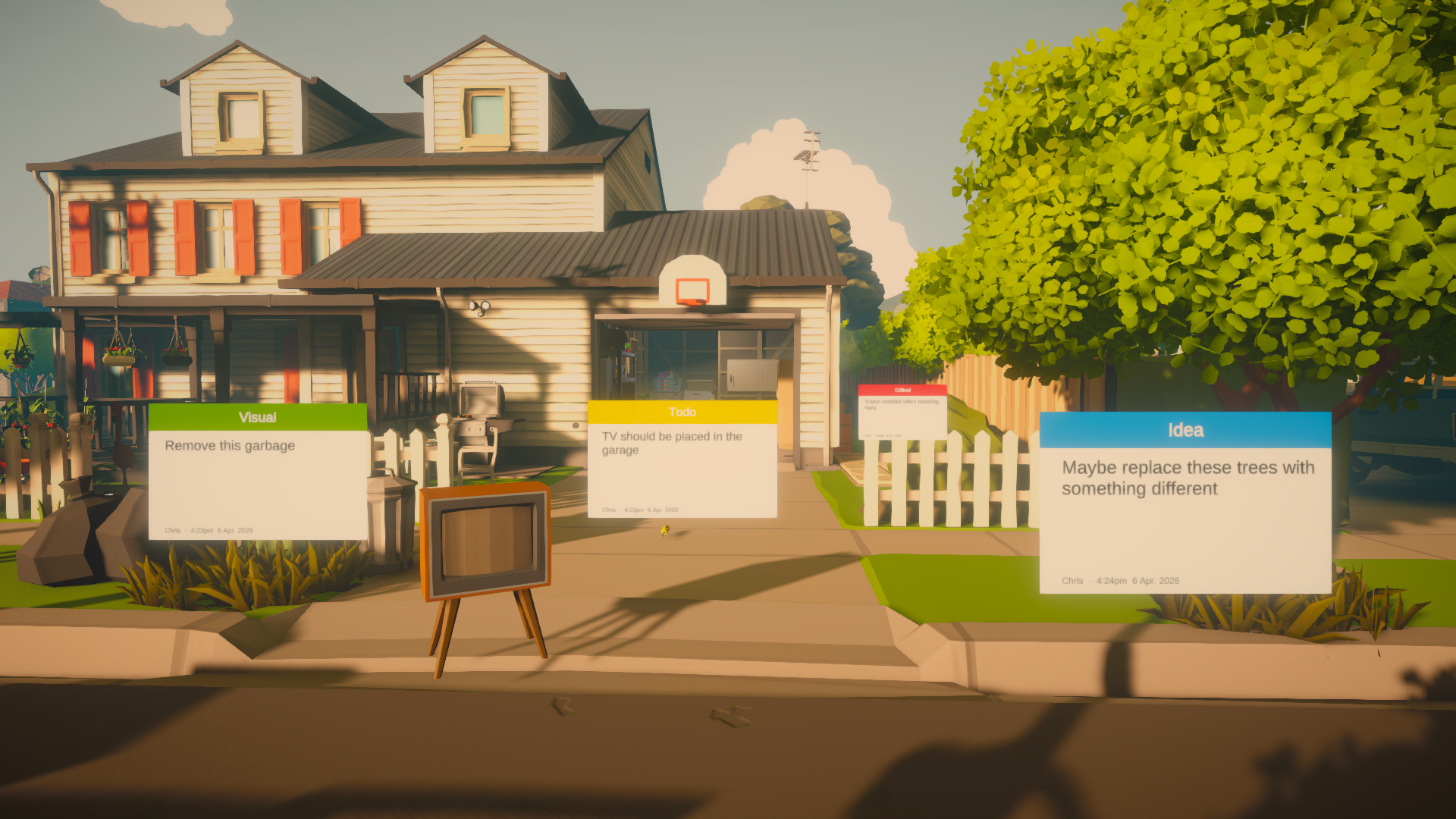
What is Scene Notes?
Scene Notes is a Unity editor tool that lets you create spatial annotations while playtesting your game. Instead of alt-tabbing to a notepad or trying to remember where a bug was, you press a hotkey and drop a note right where the issue is.
When play mode ends, your notes are waiting in the scene. Click any note in the Scene Notes Manager window and the camera flies straight to it.
Key features
- Create notes during play mode with a single hotkey press
- Show or hide all notes at runtime with Shift+F8
- Notes persist after play mode ends — stored in a ScriptableObject database
- Three placement modes: player position, cursor raycast, and screen centre
- Works in both 2D and 3D projects
- Works in the Unity Editor and in standalone builds
- Colour-coded note types: Critical, Bug, Todo, Visual, Idea
- Fully customisable — add your own note types, colours, and hotkeys
- Scene Notes Manager window with filtering, multi-select, and camera navigation
- Bulk resolve, unresolve, and delete selected notes
- Export to CSV for project management tools
- Export and import JSON for standalone build QA workflows
- Auto-fills date, time, author name, world position, and scene name
- Settings validation panel warns about missing configuration
- Demo scene included to try out all features immediately
- Render-on-top mode — notes visible through walls and geometry
Quick start
Scene Notes uses a guided setup wizard. Run these three steps from the Unity menu bar:
- Tools → Scene Notes → 1. Create Assets
- Tools → Scene Notes → 2. Create Prefabs
- Tools → Scene Notes → 3. Create Demo Scene (optional — creates a test scene with pre-seeded notes)
Once set up:
- Drag the SceneNotesCanvas prefab into your scene (from
Assets/SceneNotes/Prefabs/) - Enter play mode
- Press F8 when you spot an issue
- Type a description, pick a note type, and click Confirm
- Exit play mode — your notes persist in the scene
For detailed setup instructions, see Getting started.
Requirements
- Unity 2021.3 or higher
- TextMeshPro package (included with Unity by default)
- Compatible with Built-in, URP, and HDRP render pipelines
- Works with 2D and 3D projects
Support
- Discord: https://discord.gg/DSUd2QcyHZ
- Documentation: https://ludichris000.github.io/Scene-Notes/
- Asset Store Page: https://assetstore.unity.com/packages/slug/370274
- Website: www.chrisburns.com.au