INTERACTIVE
DISPLAY SYSTEM
Turn any mesh or UI element into a fully functional screen. Five display modes, CRT power effects, static noise transitions, shared broadcast clock, and a full scripting API. No scripting required for basic setups.
Everything You Need
A complete system for TVs, monitors, CCTV screens, digital signage, and UI panels in your Unity project.
Getting Started Quick Start
Set up a working TV screen in under a minute
Interactive Display System uses a TV/Channel metaphor. The TVScreen component is the physical television set — it handles rendering, power state, and audio. Channels are ScriptableObject assets that define what content to display and how.
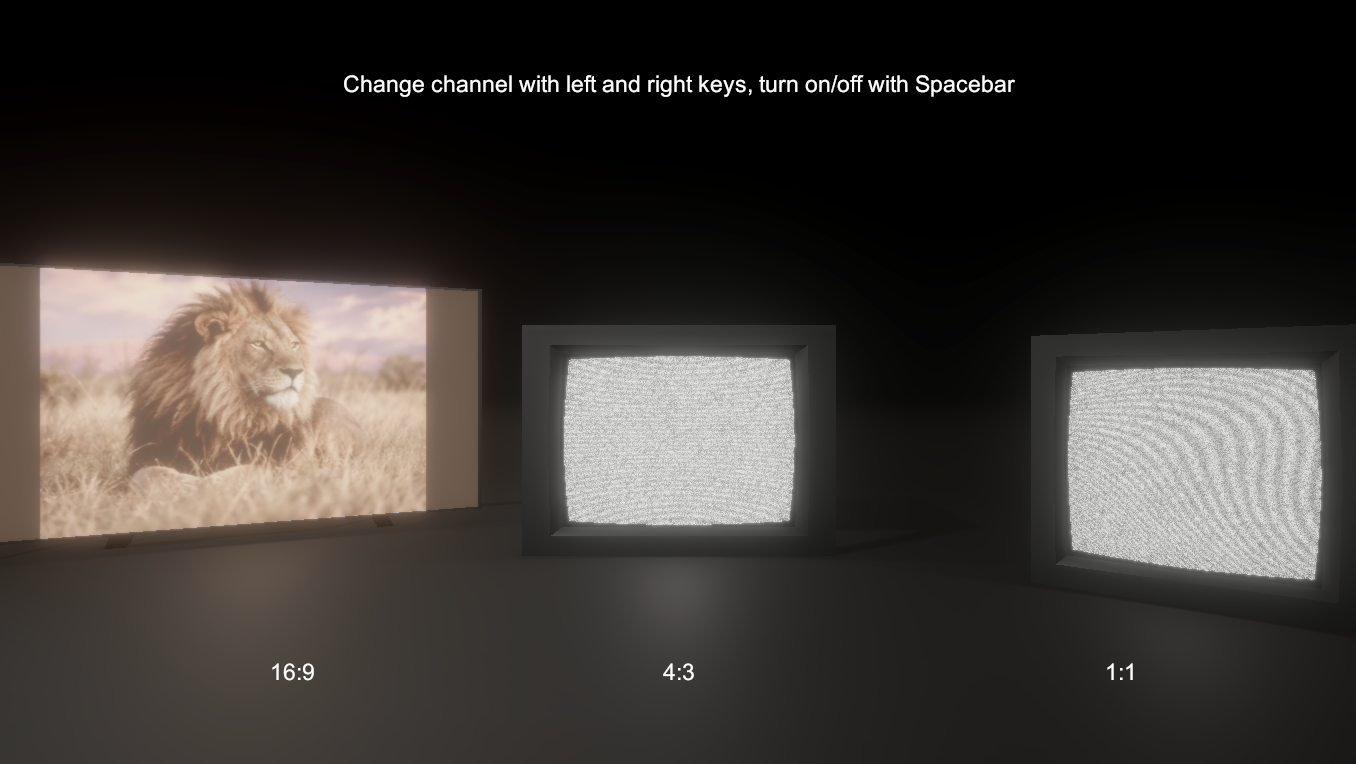
Basic Setup
- Add the
TVScreencomponent to any GameObject with a MeshRenderer (for 3D) or assign a UI RawImage (for Canvas). - Create one or more
TVChannelDataScriptableObjects via Create > InteractiveDisplaySystem > Channel Data. Choose a display mode and assign your content (textures, sprites, sprite sheet, or camera). - Create a
TVScreenSettingsScriptableObject via Create > InteractiveDisplaySystem > Screen Settings. Configure your CRT look — scanlines, curvature, tint, brightness. - Assign the channel(s) and screen settings to your TVScreen component. Press Play.
Namespace
All scripts live under ChrisBurns.InteractiveDisplaySystem. Add this using directive to access the API from your own scripts:
TVScreen Core
The main component — your virtual television set
TVScreen is the central MonoBehaviour that orchestrates everything. It manages the power state, channel playback, rendering, audio, and emission sampling. Drop it onto any GameObject and configure it entirely through the Inspector.
Render Modes
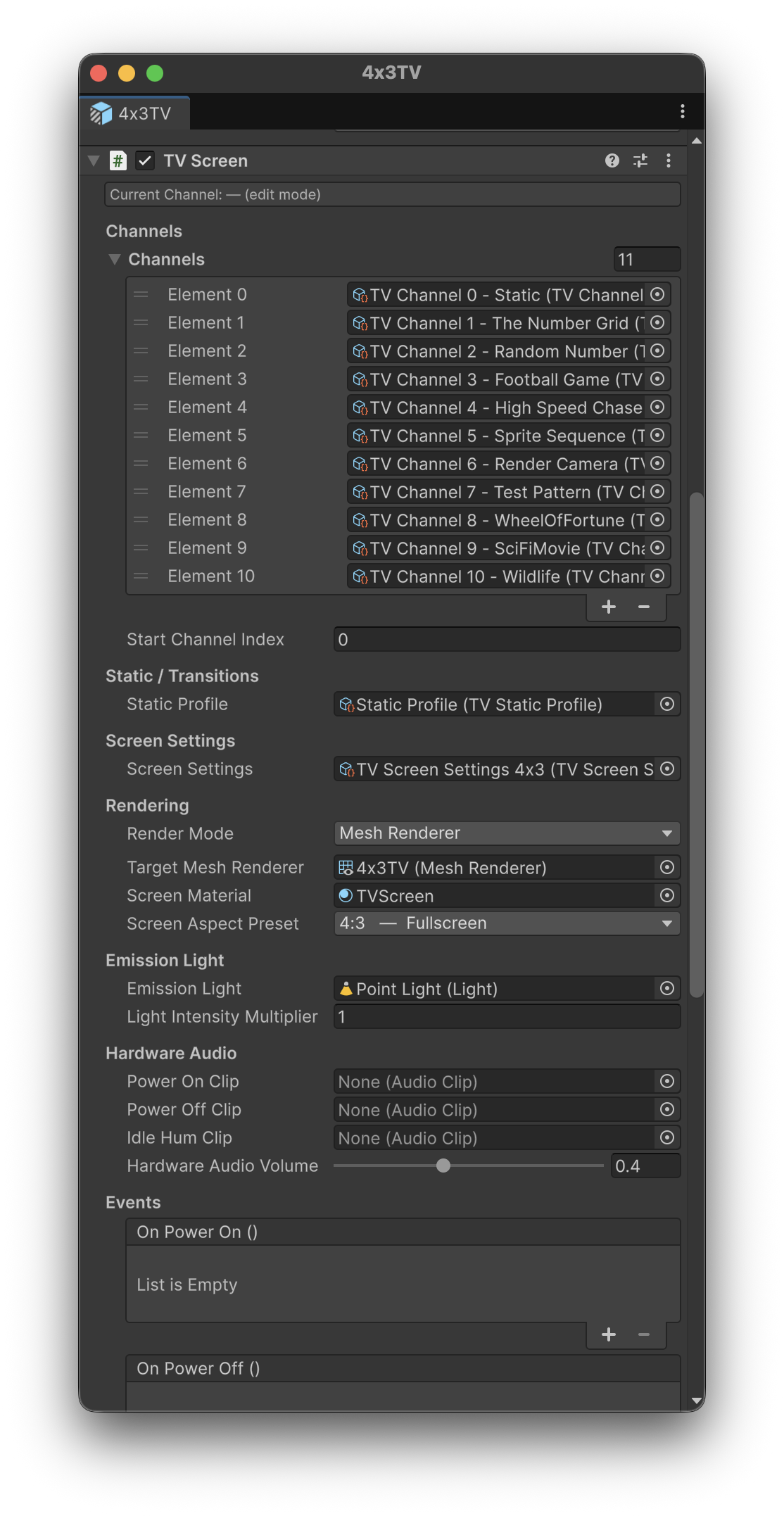
TVScreen supports two render targets, selected via the Render Mode dropdown:
Renders onto any 3D object — quads, TV prop meshes, monitor models. Uses MaterialPropertyBlock for efficient per-instance rendering with no material clones. The component auto-detects the correct material slot.
Renders into a Unity UI RawImage on a Canvas. Same features, same shader effects, same API. Uses a managed material instance. Ideal for in-game tablet UIs, HUD camera feeds, or menu backgrounds.
Inspector Properties
| Property | Type | Description |
|---|---|---|
| channels | TVChannelData[] | Array of channel ScriptableObjects the TV can display. Order determines channel index. |
| startChannelIndex | int | Which channel index to tune to on power-on. Defaults to 0. |
| staticProfile | TVStaticProfile | ScriptableObject controlling static noise appearance and transition behaviour. |
| screenSettings | TVScreenSettings | ScriptableObject for the physical TV's visual properties (scanlines, curvature, tint, etc.). |
| renderMode | TVRenderMode | MeshRenderer or UIRawImage. Determines which render path is used. |
| targetMeshRenderer | MeshRenderer | The MeshRenderer to draw on (MeshRenderer mode). Auto-assigned from the GameObject if not set. |
| targetRawImage | RawImage | The UI RawImage to draw on (UIRawImage mode). |
| screenMaterial | Material | Optional explicit screen material reference. Used to identify the correct material slot on multi-material meshes. |
| materialIndex | int | Material slot index on the MeshRenderer. Auto-detected or set manually. |
| screenAspectPreset | TVContentAspect | Aspect ratio of the physical screen face. 27 presets or Custom. |
| emissionLight | Light | Optional scene Light whose colour and intensity will be driven by the screen content. |
| powerOnClip | AudioClip | Sound played on power-on (hardware click). |
| powerOffClip | AudioClip | Sound played on power-off (hardware click). |
| idleHumClip | AudioClip | Looping hum played while powered on (uses a dedicated AudioSource). |
UnityEvents
| Event | Description |
|---|---|
| onPowerOn | Fired when the TV powers on. |
| onPowerOff | Fired when the TV powers off. |
| onChannelChanged | Fired when the active channel index changes. |
| onChannelDataChanged | Fired when the channel's content data updates (texture swap, new frame). |
| onStaticStart | Fired when a static transition begins. |
| onStaticEnd | Fired when a static transition ends and the new channel is visible. |
Display Modes Channel Data
Five ways to put content on screen — TVChannelData ScriptableObject
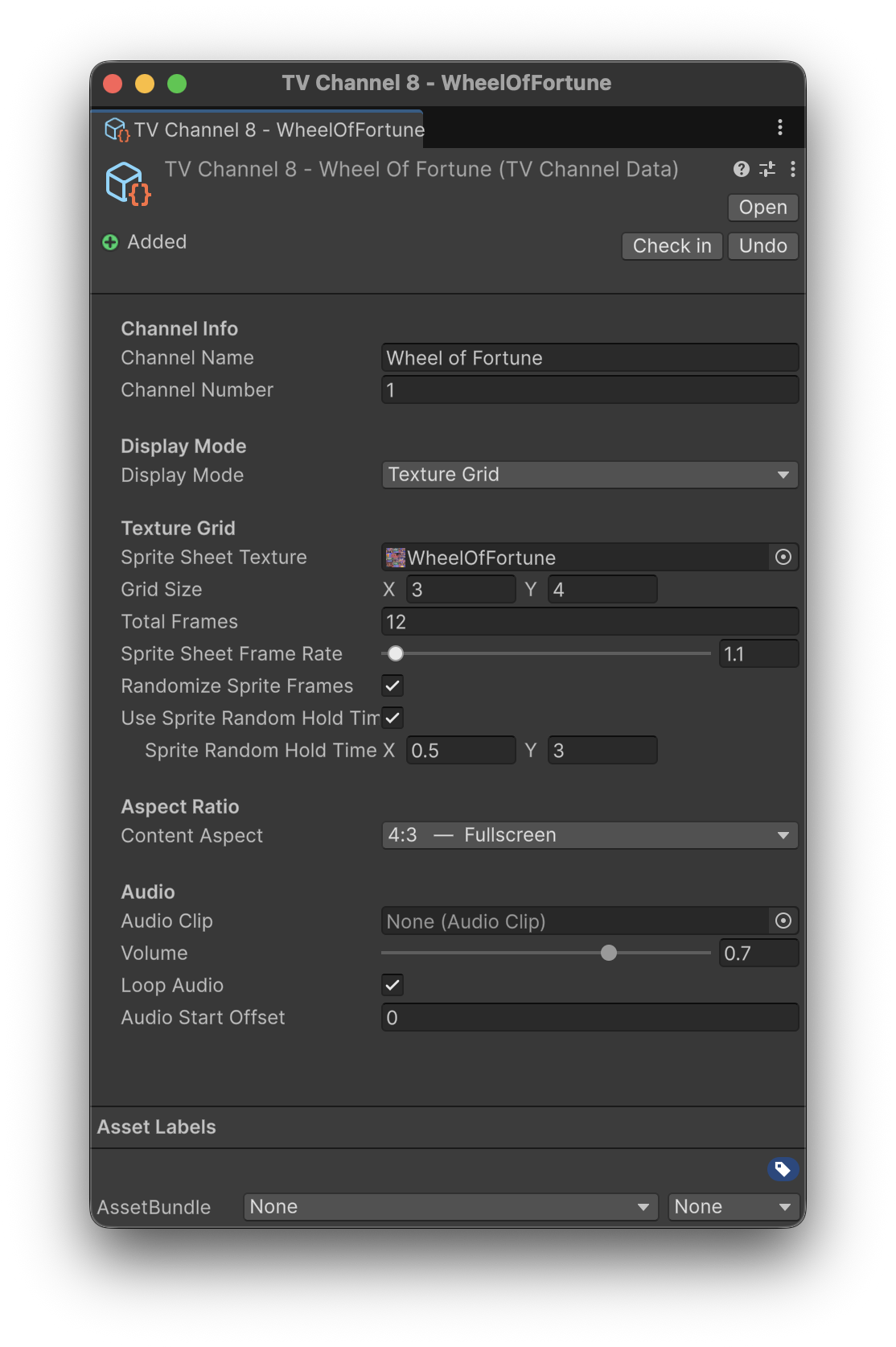
Each channel is a TVChannelData ScriptableObject (Create > InteractiveDisplaySystem > Channel Data). You pick one of five display modes and assign the matching content. Every mode supports configurable frame rate, random frame order, and random hold times per frame for organic, non-uniform playback.
Cycles through an array of individual Texture2D assets at a configurable frame rate. Ideal for hand-authored image sets, slideshow content, or exported GIF frames. Each frame is a separate texture.
Cycles through Unity Sprite assets. Works with individual sprites or atlas sub-sprites. UV coordinates are read directly from each sprite's rect — no manual grid setup needed. Drag sliced sprite sheet sub-sprites straight into the array.
All animation frames packed into a single texture in a uniform grid. Set the grid dimensions (columns x rows) and total frame count. More GPU-efficient for larger frame counts since only one texture is loaded. Frames step left-to-right, top-to-bottom.
Live camera feed via RenderTexture. Add the TVCameraChannel component to any scene camera and assign a channel — TVScreen discovers it automatically at startup. Cameras are enabled only when their channel is active, so inactive feeds cost nothing.
Continuous procedural noise for "dead channel" or "no signal" effects. Generated entirely in the shader — no textures needed. The noise never tiles. Choose monochrome (classic broadcast snow) or colour (digital glitch).
Channel Properties
| Property | Type | Description |
|---|---|---|
| channelName | string | Display name for UI overlays or on-screen channel banners. |
| channelNumber | int | Channel number for UI display purposes. |
| displayMode | TVDisplayMode | FrameSequence, SpriteSequence, TextureGrid, RenderTexture, or Static. |
| frames | Texture2D[] | Frame Sequence mode: array of textures to cycle. |
| frameRate | float | Frame Sequence mode: playback speed in frames per second. |
| sprites | Sprite[] | Sprite Sequence mode: array of Sprite assets to cycle. |
| spriteFrameRate | float | Sprite Sequence mode: playback speed. |
| spriteSheetTexture | Texture2D | Texture Grid mode: the packed sprite sheet texture. |
| gridSize | Vector2Int | Texture Grid mode: columns x rows of the grid layout. |
| totalFrames | int | Texture Grid mode: actual number of frames (may be less than cols * rows). |
| spriteSheetFrameRate | float | Texture Grid mode: playback speed. |
| randomizeFrames | bool | Play frames in random order instead of sequential. |
| useRandomHoldTime | bool | Hold each frame for a random duration instead of fixed frame rate. |
| randomHoldTimeRange | Vector2 | Min/max seconds to hold each frame when random hold time is enabled. |
| contentAspect | TVContentAspect | Aspect ratio of the source content. Used for letterbox/pillarbox calculations. |
| audioClip | AudioClip | Audio to play when this channel is active. |
| volume | float | Volume level for this channel's audio. |
| loopAudio | bool | Whether the channel audio loops. |
| audioStartOffset | float | Start playback at this time offset (seconds). |
Screen Settings ScriptableObject
The physical TV's visual properties — TVScreenSettings
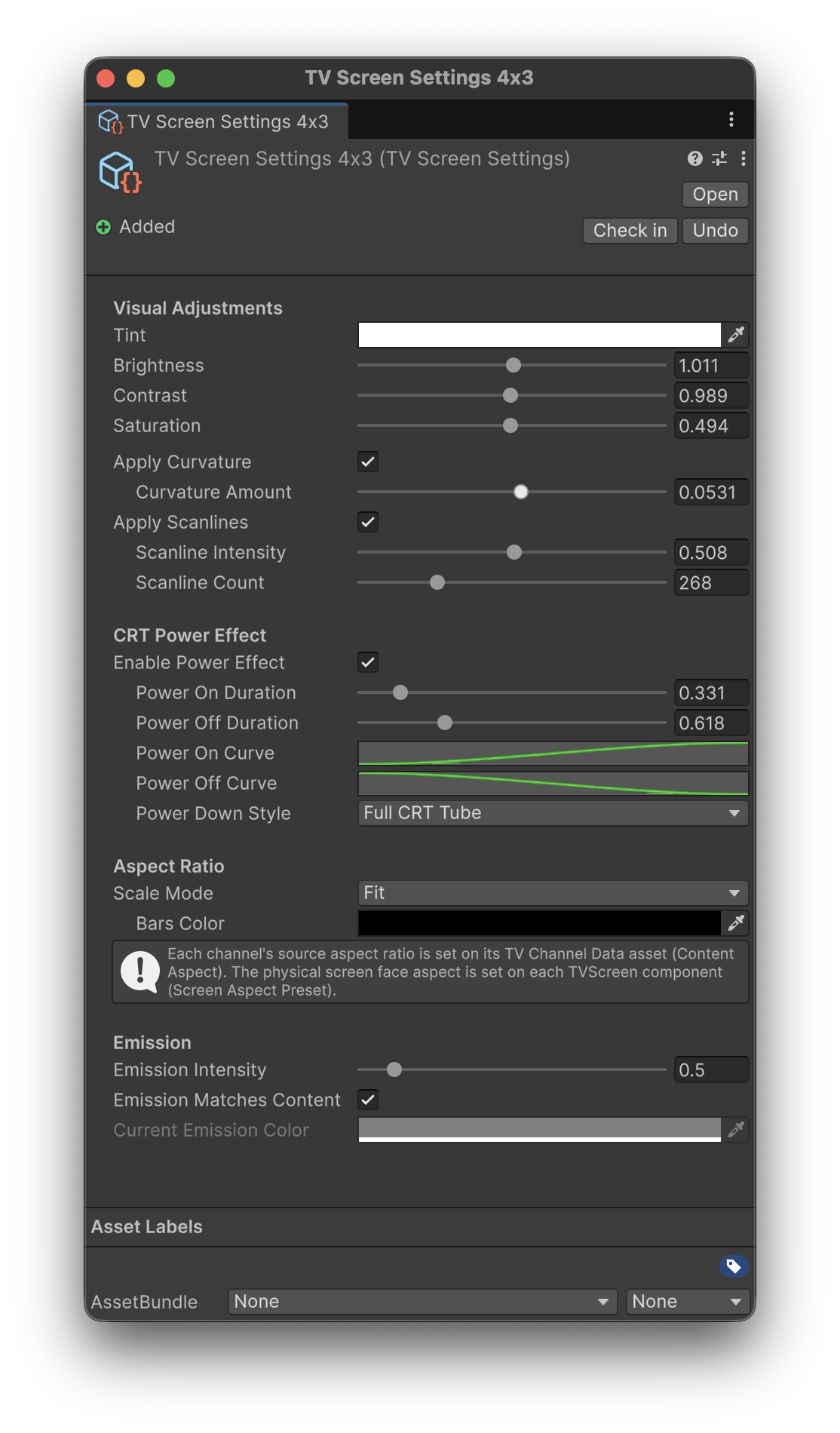
TVScreenSettings is a ScriptableObject (Create > InteractiveDisplaySystem > Screen Settings) that defines the "physical TV set" — how it looks regardless of what channel is playing. Share one settings asset across every TV of the same type. Change one value, every TV using that profile updates.
Visual Properties
| Property | Type | Description |
|---|---|---|
| tint | Color | Colour tint applied to the screen. Warm amber for vintage, green for surveillance, white for neutral. |
| brightness | float (0-2) | Overall brightness multiplier. |
| contrast | float (0-2) | Contrast adjustment around midpoint. |
| saturation | float (0-1) | Colour saturation. 0 = greyscale, 1 = full colour. |
| applyCurvature | bool | Enable CRT barrel distortion effect. |
| curvatureAmount | float | Strength of the barrel distortion. Small values (0.02-0.05) look natural. |
| applyScanlines | bool | Enable horizontal scanline overlay. |
| scanlineIntensity | float (0-1) | How visible the scanlines are. |
| scanlineCount | float | Number of scanlines. 240 for NTSC, 288 for PAL, 480 for later CRTs — or any value. |
| barsColor | Color | Colour of letterbox/pillarbox bars when aspect ratios don't match. |
CRT Power Effect
| Property | Type | Description |
|---|---|---|
| enablePowerEffect | bool | Enable animated CRT power on/off transitions. Disable for instant on/off (flat panel style). |
| powerOnDuration | float | Duration of the power-on animation in seconds. |
| powerOffDuration | float | Duration of the power-off animation in seconds. |
| powerOnCurve | AnimationCurve | Timing curve for the power-on animation. |
| powerOffCurve | AnimationCurve | Timing curve for the power-off animation. |
| powerDownStyle | CRTPowerDownStyle | FullCRTTube or HorizontalLineOnly. See CRT Power Effects section. |
Emission
| Property | Type | Description |
|---|---|---|
| emissionIntensity | float | Base emission strength of the screen. |
| emissionMatchesContent | bool | When enabled, the emission colour is GPU-sampled from the displayed content at 20Hz. |
| currentEmissionColor | Color | The current emission colour (read-only at runtime, driven by the sampling system). |
Static Profile ScriptableObject
Configure static noise appearance and channel switch transitions — TVStaticProfile
TVStaticProfile (Create > InteractiveDisplaySystem > Static Profile) controls how static noise looks and how it behaves during channel switches. The noise swells over the old channel, the new channel appears at the midpoint, and the static fades out.
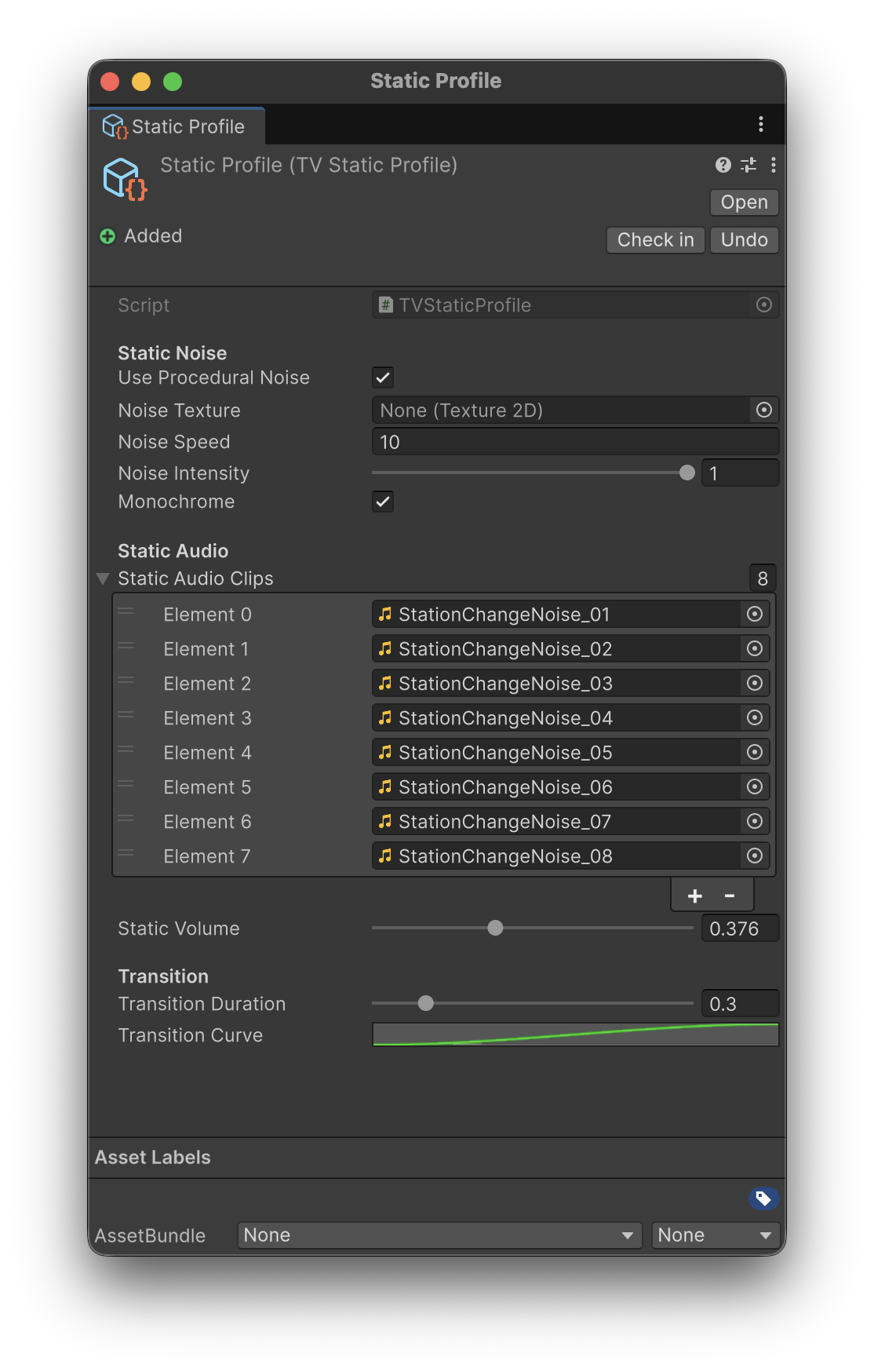
| Property | Type | Description |
|---|---|---|
| useProceduralNoise | bool | Generate noise in the shader (no texture needed). Disable to use a custom noise texture. |
| noiseTexture | Texture2D | Custom noise texture for hand-authored static patterns. Only used when procedural noise is disabled. |
| noiseSpeed | float | How fast the static noise animates. |
| noiseIntensity | float | Strength of the noise effect. |
| monochrome | bool | True = classic black-and-white broadcast snow. False = coloured digital glitch. |
| staticAudioClips | AudioClip[] | Array of static/white noise audio clips. A random clip is picked on each channel switch. |
| staticVolume | float | Volume for static transition audio. |
| transitionDuration | float | Total duration of the static transition in seconds. Set to 0 for instant digital-style switching. |
| transitionCurve | AnimationCurve | Timing curve for the static transition blend. |
TVCameraChannel Component
CCTV camera source for RenderTexture channels
Add TVCameraChannel to any Camera in your scene to make it available as a live CCTV feed. Assign a TVChannelData (set to RenderTexture mode) and the TVScreen will discover this camera automatically at startup. No manual RenderTexture wiring required.
| Property | Type | Description |
|---|---|---|
| channelData | TVChannelData | The channel ScriptableObject this camera provides content for. Must have displayMode set to RenderTexture. |
Aspect Ratio System Feature
27 presets, three scale modes, independent screen and content ratios
Both the screen (physical TV face) and the content (source material) have independent aspect ratio settings. When they don't match, the Scale Mode determines how to handle it.
Scale Modes
Fills the screen exactly. May distort if the content and screen aspect ratios differ.
Shows the full image centred with letterbox (horizontal bars) or pillarbox (vertical bars) as needed. No cropping, no distortion.
Crops the content to fill the screen completely. No bars, no distortion, but edges may be cut off.
Aspect Ratio Presets (TVContentAspect)
27 named presets covering everything from smartphone to super ultrawide. Both the screen and each channel's content can use any preset or a custom ratio.
Audio System Feature
Three audio layers — channel, static, and hardware
The audio system has three independent layers, all controlled by a master volume and mute toggle.
Each TVChannelData can have its own AudioClip with independent volume, loop toggle, and start offset. Audio switches with the channel automatically. Configured on the channel ScriptableObject, not on TVScreen.
Assign multiple static/white noise clips to the TVStaticProfile. A random clip plays during each channel switch transition. The audio fades in and out with the static noise.
Optional power-on click, power-off click, and continuous idle hum loop. These play on a dedicated AudioSource so they never interrupt channel or static audio. Configured on the TVScreen component directly.
Volume Control
Emission & Screen Glow Feature
GPU-sampled emission colour drives scene lighting automatically
The screen emits light with configurable intensity. When emissionMatchesContent is enabled on the TVScreenSettings, the emission colour is GPU-sampled from the currently displayed frame at 20Hz. A red scene glows red, a dark scene barely glows.
The sampling uses an 8x8 RenderTexture blit to extract an average colour from the current frame. It respects sprite sheet UV offsets, so only the current frame cell is sampled — not the entire texture atlas.
Automatic Light Driving
Assign a Point or Spot Light to the emissionLight field on TVScreen. The light's colour and intensity are then driven automatically to match the screen content — simulating the TV illuminating its surroundings. No extra scripting needed.
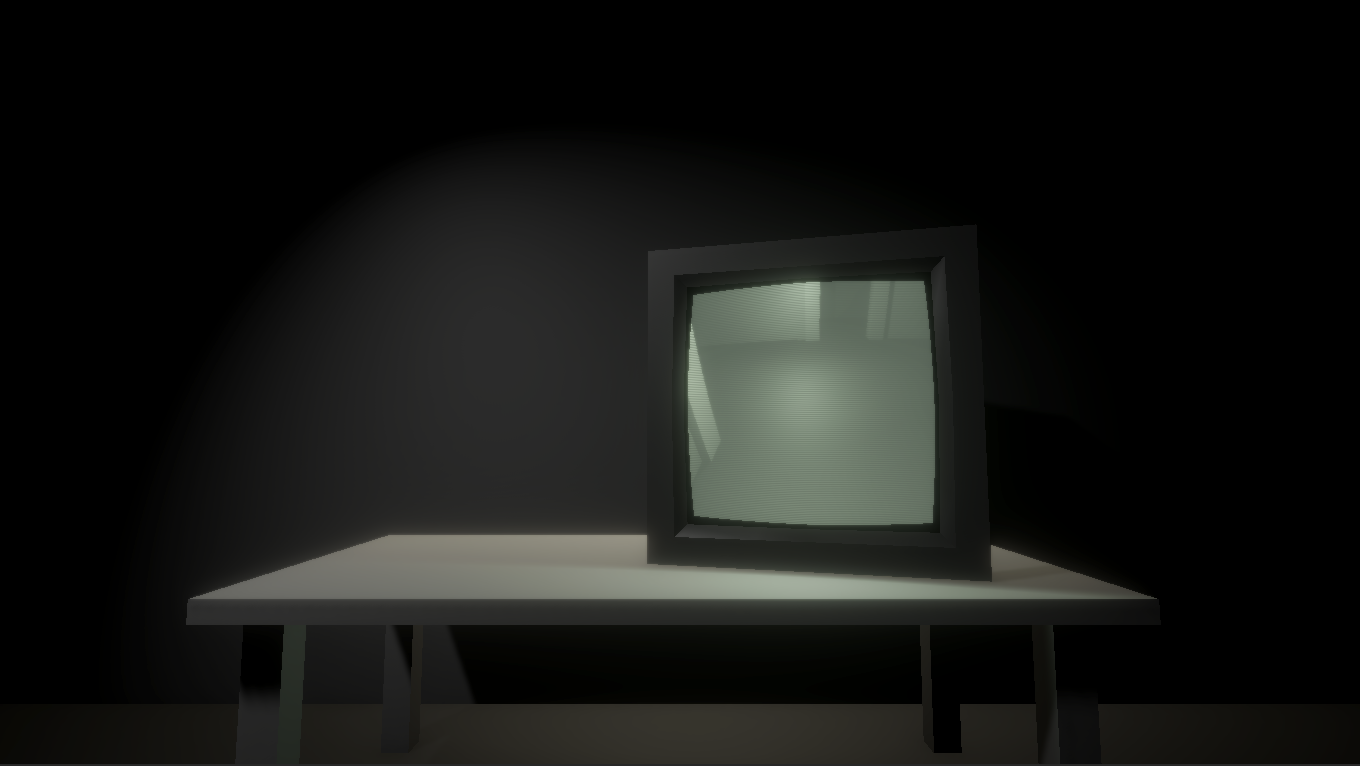
Emission fades smoothly through CRT power animations and snaps to neutral grey during static transitions, so the room lighting always matches what's actually visible on screen.
CRT Power Effects Effect
Animated power on/off with phosphor flare
Animated power transitions that mimic real CRT hardware. Both styles use configurable AnimationCurves for timing, with separate durations for power-on and power-off. The shader adds a phosphor flare as the image collapses — the bright line/dot glow you see on real CRT televisions.
Power Down Styles
The image collapses vertically to a bright horizontal line, then squeezes horizontally to a bright centre dot before fading out. The full retro experience. Reversed on power-on.
Collapses to a horizontal centre line and fades. A simpler, faster effect for when the full tube collapse is too dramatic.
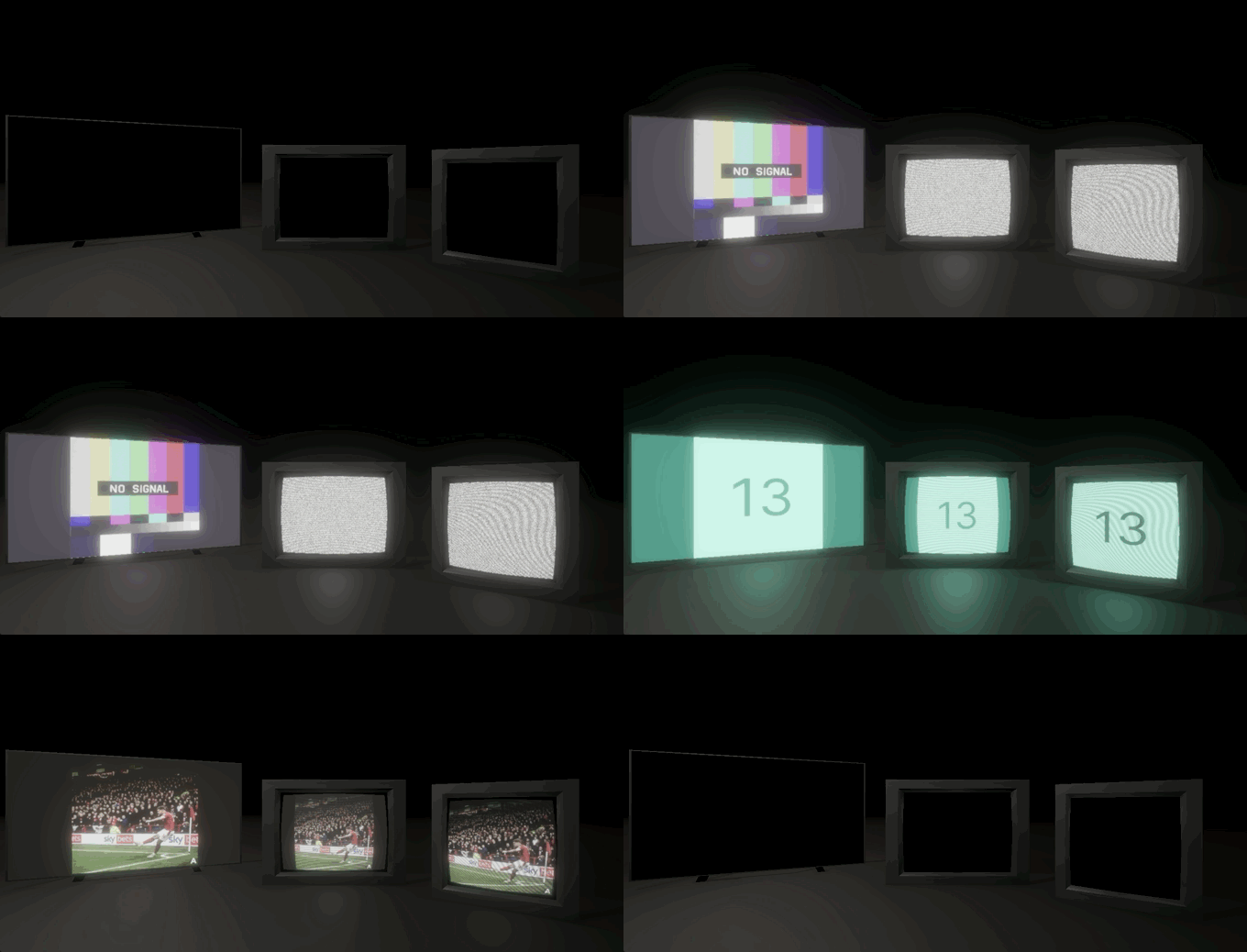
Disable the power effect entirely on the TVScreenSettings for instant on/off (flat panel / modern monitor style).
Shared Broadcast Clock Core
Multiple TVs on the same channel are always frame-locked
Multiple TVs tuned to the same TVChannelData ScriptableObject display the same frame at the same time, automatically. The broadcast clock is a static dictionary keyed by channel asset — its state is advanced once per Unity frame regardless of how many TVs reference it.
Switching to a channel mid-playback shows exactly where a "live broadcast" would be, not frame zero. This happens automatically with no setup required — just assign the same channel asset to multiple TVScreen components.
Scripting API Reference
Full public API for controlling TVScreen from code
Methods
| Method | Returns | Description |
|---|---|---|
| PowerOn() | void | Powers on the TV. Plays the CRT power-on animation if enabled. |
| PowerOff() | void | Powers off the TV. Plays the CRT power-off animation if enabled. |
| TogglePower() | void | Toggles between powered on and off. |
| SetChannel(int) | void | Switches to the channel at the given index. Plays the static transition if configured. |
| NextChannel() | void | Switches to the next channel (wraps around). |
| PreviousChannel() | void | Switches to the previous channel (wraps around). |
| RandomChannel() | void | Switches to a random channel (avoids the current one). |
| SetVolume(float) | void | Sets the master volume (0 to 1). Affects all audio layers. |
| SetMute(bool) | void | Mutes or unmutes all audio without changing the volume level. |
Properties
| Property | Type | Description |
|---|---|---|
| IsPoweredOn | bool | Whether the TV is currently powered on. |
| CurrentChannelIndex | int | Index of the currently active channel. |
| CurrentChannel | TVChannelData | The currently active channel ScriptableObject. |
| ChannelCount | int | Number of channels assigned to this TV. |
| IsMuted | bool | Whether the TV is currently muted. |
| Volume | float | Current master volume level. |
Example Usage
UnityEvents
Six events are available for wiring up game logic in the Inspector or subscribing from code:
Shaders & Pipeline Support Rendering
Three custom shaders — auto-detected at runtime
Interactive Display System ships with three custom shaders. The correct shader is detected and applied automatically at runtime based on your project's active render pipeline. No manual shader assignment needed.
Universal Render Pipeline shader. Full HLSL implementation with all TV effects: curvature, scanlines, colour adjustments, CRT power collapse, static noise, aspect ratio correction, and emission.
Built-in Render Pipeline shader. Same feature set as URP but written for the legacy pipeline. Used as the automatic fallback.
Canvas/UI shader for RawImage rendering. Pipeline-agnostic — works with both URP and Built-in. Used automatically when Render Mode is set to UIRawImage.
Shader Includes
Shared shader logic lives in two include files:
| File | Contents |
|---|---|
| TVCommon.hlsl | Shared functions: TVApplyCurvature, TVCurvatureMask, TVApplyScanlines, TVColorAdjust, TVApplyTint, TVPowerEffectUV, TVPowerEffectColor, sprite sheet UV stepping. |
| TVNoise.hlsl | Procedural noise generation: TVStaticNoise, TVStaticTransition. Hash-based noise that never tiles. |
Pipeline Auto-Detection
TVShaderUtility checks GraphicsSettings.currentRenderPipeline at runtime. If the pipeline type name contains "Universal", the URP shader is used. Otherwise, the Built-in shader is selected as the default. The UI shader is always pipeline-agnostic.
Technical Details Reference
Architecture, performance, and compatibility
Architecture
The system follows a clean separation of concerns. TVScreen orchestrates everything but delegates rendering to specialised renderer classes (TVQuadRenderer for MeshRenderer, TVUIRenderer for RawImage), frame playback to TVChannelPlayer, and effects to TVPowerEffect and TVStaticEffect. All data lives in ScriptableObjects that can be shared and reused across any number of TVScreens.
Performance
| Feature | Detail |
|---|---|
| Frame Playback | Zero-allocation at runtime. No GC pressure during normal operation. |
| MeshRenderer | Uses MaterialPropertyBlock — no per-instance material clones. Multiple TVs share the same material in memory. |
| Emission Sampling | GPU-side 8x8 RenderTexture blit at 20Hz with persistent objects. No per-frame allocation. |
| Broadcast Clock | Static dictionary advanced once per Unity frame regardless of TV count. O(1) per TV. |
| CCTV Cameras | Cameras for inactive RenderTexture channels are disabled. Only the currently displayed camera renders. |
| UI Rendering | Managed material instance per RawImage. Cleaned up on destroy. |
Script Architecture
| Script | Role |
|---|---|
| TVScreen | Main orchestrator MonoBehaviour. Power state, channel management, audio, emission. |
| TVChannelPlayer | Frame playback engine with shared broadcast clock. |
| TVDisplayRenderer | Abstract base class with cached shader property IDs. |
| TVQuadRenderer | MeshRenderer implementation using MaterialPropertyBlock. |
| TVUIRenderer | UI RawImage implementation with owned material instance. |
| TVCameraChannel | Component for marking cameras as CCTV feed sources. |
| TVPowerEffect | CRT power on/off animation state machine. |
| TVStaticEffect | Static noise transition with midpoint channel swap detection. |
| TVShaderUtility | Runtime render pipeline detection and shader selection. |
| TVSpriteSheetHelper | UV offset/scale calculations for texture grid stepping. |
| TVChannelData | ScriptableObject: channel content definition. |
| TVScreenSettings | ScriptableObject: physical TV visual properties. |
| TVStaticProfile | ScriptableObject: static noise and transition settings. |
Compatibility
| Requirement | Detail |
|---|---|
| Unity Version | 2021.3+ (LTS) and later |
| Render Pipelines | Built-in and Universal (URP). Auto-detected at runtime. |
| Dependencies | None. No third-party packages required. |
| Namespace | ChrisBurns.InteractiveDisplaySystem |
| Platforms | All platforms supported by Unity's render pipelines. |
Support & Contact
Get help, report issues, or request features
If you have questions, run into issues, or want to request a feature, the best way to reach me is through the Unity Asset Store. Leave a review or send a message through the publisher page.