Get on Asset Store ↗
✦ Unity Editor Extension

Animate faster.
Work smarter.

A growing collection of Unity Editor tools built to streamline animation workflows — from dialogue and lip-sync to randomised idle states and animator behaviour scripting.

Get on Asset Store View Documentation
Included Tools

Everything in the package

Four tools, one package. Each one designed to solve a real animation problem.

🎵

AudioTimeline

Visualise and scrub through an audio file in sync with Unity's Animation window. Perfect for animating dialogue.

🖼️

Mesh Material Swapper

Click-to-keyframe material switching for mouth shapes, blink textures, and any swap-based animation.

🧠

Animator Behaviour Tools

State-driven parameter control, layer weight management, and randomised idle animation — all without custom code.

🔗

Animation Missing Reference Finder New

Find and fix broken animation bindings caused by hierarchy changes — automatically or manually.


🎵

AudioTimeline

Animate to audio — scrub, preview, and keyframe in perfect sync.

Overview

AudioTimeline is an Editor window that lets you animate to an audio file directly inside Unity. It was designed for dialogue animation and lip-sync, but works equally well for sound-driven character movement or any timed action — a gun reload, a footstep sequence, a combat swing.

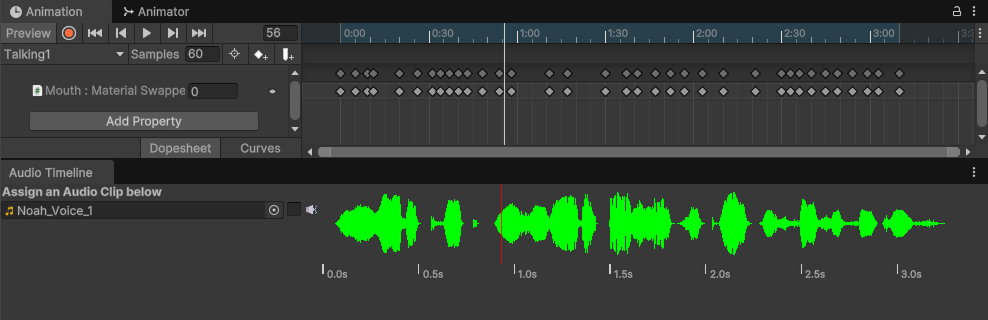
AudioTimeline window showing waveform

Getting Started

1 · Set up the Animator (optional but recommended)

For dialogue animation, it's best to keep facial animations on their own layer so they don't interfere with body movement.

  1. Open the Animator window via Window → Animation → Animator
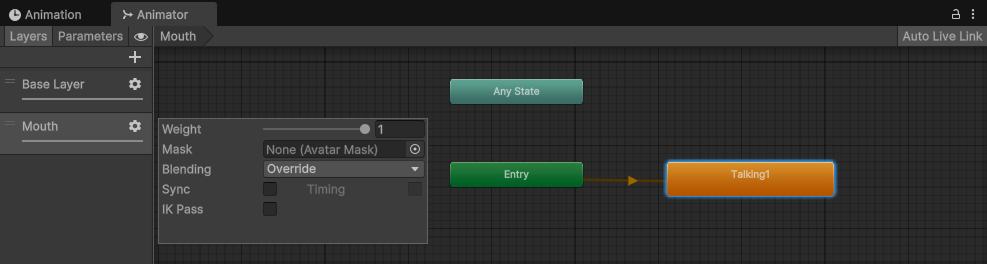
  2. Create a new layer — e.g. Mouth. Click the ⚙ icon, set Blending to Override, and set Weight to 1.
  3. Create a new Animation Clip and drag it into this layer as the default state so it triggers automatically on Play.
  4. Animator window showing Mouth Layer setup

2 · Open AudioTimeline and assign a clip

  1. Go to Window → AudioTimeline
  2. Drag your AudioClip into the field. Use the Mute checkbox to toggle playback during Edit mode.

3 · Nest below the Animation window

  1. Open the Animation window: Window → Animation → Animation (or Ctrl+6).
  2. Drag the floating AudioTimeline window and dock it directly below the Animation window.
  3. Audio Timeline window nexted below the Animation window

4 · Align the waveform

With a clip assigned and the window docked, you'll see the waveform. A red playhead line tracks in sync with the Animation window's scrubber.

💡 Tip Manually resize the waveform view by dragging the edge at the start of the waveform. Match its visible width to the keyframe area of the Animation window and zoom the timeline to align them — this gives you the tightest frame-accurate reference.

5 · Animate

With record mode active in the Animation window, scrub or play back as normal. The waveform updates in real time, giving you a clear visual reference for mouth shapes, blinks, and expression changes.


🖼️

Mesh Material Swapper

Click a thumbnail. Keyframe a mouth shape. Done.

Overview

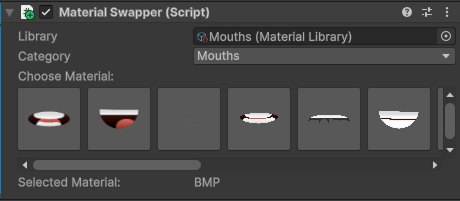
The Material Swapper is a component-based tool that displays your materials as thumbnail buttons. Clicking a thumbnail swaps the mesh material and (in record mode) automatically creates a keyframe — making lip-sync animation a click-by-click process rather than a property-hunting exercise.

It works best alongside the AudioTimeline window, where you can see the waveform and click mouth shapes to rhythm.

Mesh material swapper component showing material thumbnails in the inspector

Setup

1 · Create your materials

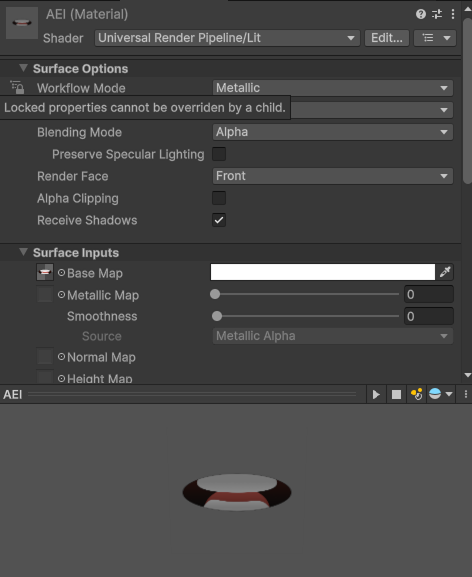
Create one material per mouth pose (or eye texture, or any swap target). For transparent textures that still catch lighting, use these settings in the material inspector:

AEI material settings for transparent textures

2 · Create a Material Library

  1. Right-click in your Project window.
  2. Choose Create → Material Library.

3 · Assign materials and categories

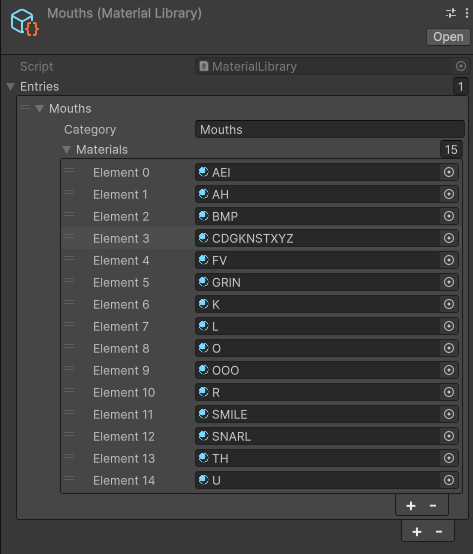
  1. Open the Material Library asset and add your materials.
  2. Create categories to group them — e.g. Mouths, Eyes, Brows.
Mouths material library showing materials organised into categories
⚠ Important The system keys the index of each material in the list. Adding materials mid-production is fine, but reordering existing entries will break keyframes already recorded against that library.

4 · Add the MaterialSwapper component

  1. Select the mesh GameObject you want to animate.
  2. Click Add Component and choose MaterialSwapper.
  3. Assign your Material Library — thumbnails generate automatically.

5 · Animate

Open the Animation window, enter record mode, and click thumbnails to swap materials and place keyframes at the current playhead position. Pair with AudioTimeline for best results.


🧠

Animator Behaviour Tools

State-aware parameter control — no custom scripts required.

Overview

A set of StateMachineBehaviour scripts you can attach to any Animator state. Each one fires automatically when a character enters, exits, or passes through that state — removing the need for manual parameter management in code.

Animation behaviour tool in the Unity Editor

How to add a behaviour

  1. In the Animator window, select an animation state (or click the layer background to target the whole layer).
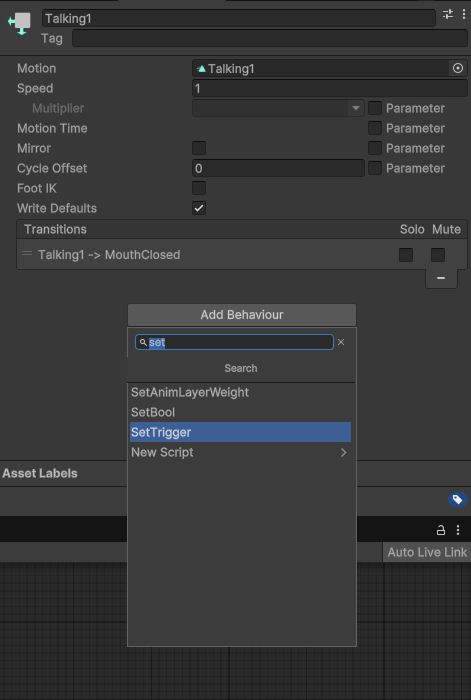
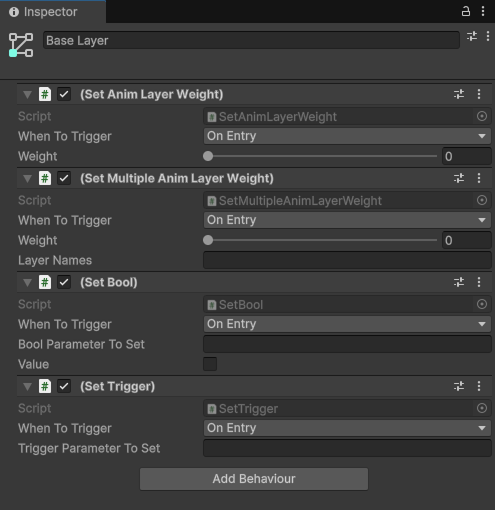
  2. In the Inspector, click Add Behaviour and choose from the list below.

Available behaviours

⚖ SetAnimLayerWeight

Controls the weight of the active layer on entry or exit. Use this to enable/disable override layers (e.g. a talking layer) automatically.

⚖⚖ SetMultipleAnimLayerWeight New

Like above, but targets multiple layers at once. Enter layer names as a comma-separated list — ideal for disabling left and right hand layers together.

☑ SetBool

Sets a boolean parameter on this Animator Controller to true or false when the state is entered or exited.

▶ SetTrigger

Fires a trigger parameter at a chosen moment (On Entry, On Exit, etc.). Make sure the parameter name string matches exactly.

🎲 ChooseRandomState

Randomly selects which animation plays next from a Sub-State Machine. Perfect for varied idle cycles and attack animations.

Animation behaviours added in the Animator window

ChooseRandomState – setup guide

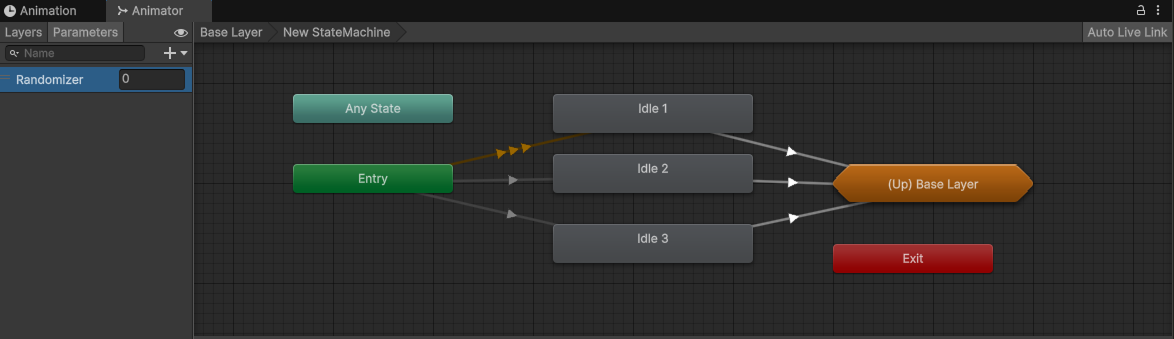
  1. Right-click the Animator layer background and choose Create new Sub-State Machine.
  2. Inside the Sub-State, create one state per animation you want to randomise (e.g. Idle1, Idle2, Idle3).
  3. Create an int parameter called Randomizer.
  4. Animator window showing Sub-State setup for ChooseRandomState behaviour
  5. Add a Transition from Entry to each state. Add a Transition from each state back out to the base layer.
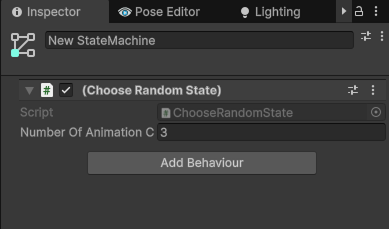
  6. Click the Sub-State background to deselect all nodes, then click Add Behaviour → ChooseRandomState in the Inspector.
  7. ChooseRandomState behaviour added to Sub-State in the Animator window
  8. Set Number Of Animations to match your clip count.
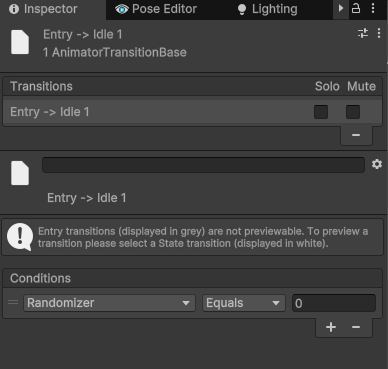
  9. Select each Entry → State transition and set its Condition to Randomizer Equals 0 (0 for first, 1 for second, etc.).
ChooseRandomState behaviour settings in the Inspector window
💡 How it works When the Sub-State is entered, ChooseRandomState sets the Randomizer int to a random value between 0 and (Number Of Animations − 1). The matching transition condition routes to the correct clip.

🔗

Animation Missing Reference Finder

Find and fix broken animation bindings caused by hierarchy changes — automatically or manually.

Overview

When a GameObject is renamed or a hierarchy is restructured, animation clip property bindings store a path string (e.g. Root/Body/Arm/Hand) that no longer resolves to anything in the scene. Unity marks these bindings yellow in the Animation window.

The Animation Missing Reference Finder scans one or more .anim clips, lists every broken path in a table, and lets you repair them — either by typing the correct path, or by letting the tool search the active scene hierarchy and suggest a fix automatically.
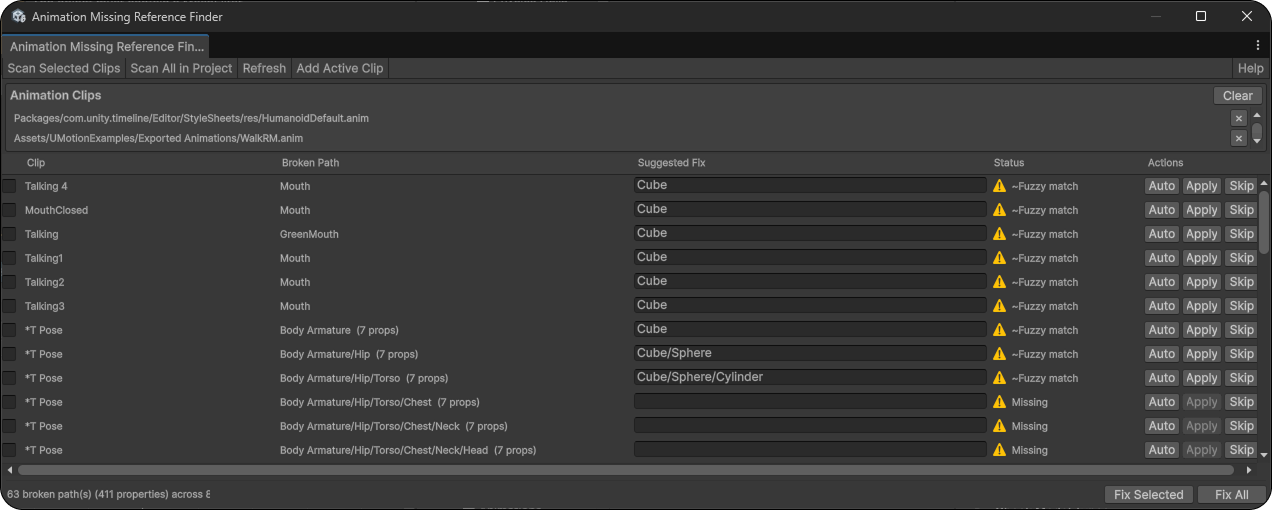
Animation Missing Reference Finder editor window showing broken binding paths and suggested fixes

Opening the Tool

Tools → Animation Tools → Animation Missing Reference Finder

The window opens as a standalone panel (minimum 700 × 450 px) and can be resized or docked like any other Unity Editor window.

Loading Clips

There are four ways to get clips into the tool:

Click Refresh to re-scan the loaded clip list after making hierarchy changes without clearing it. Click Clear to remove all clips and results.

Reading the Results Table

After scanning, the results table shows one row per broken path. Multiple animated properties that share the same broken path (e.g. localPosition.x/y/z) are grouped into a single row — a property count badge shows how many properties will be repaired when you fix that row.

Resolved

Auto-resolve found a confident exact-name match. Safe to apply.

~Fuzzy match

Auto-resolve found a close match with a slightly different name — review the suggested path before applying.

Fixed

The fix has been written to the clip successfully.

Skipped

Excluded from Fix All. Can still be applied individually.

Locked

Clip asset is read-only. Edit buttons are disabled for this row.

Auto-Resolve

Auto-resolve runs automatically on every row after each scan. It can also be triggered per-row using the Auto button.

The tool walks down the broken path segment by segment, matching each segment to the children of the previous match in the active scene hierarchy. Candidates are ranked by name similarity — exact matches are tried first, then close matches scored by similarity. A candidate is only accepted if the entire remaining path can also be resolved beneath it, so a near-match at one level that leads to a dead end is rejected and the next candidate is tried.

💡 Tip Auto-resolve requires an active scene to be open. If no scene is loaded, auto-resolve is disabled and the footer displays a warning. If auto-resolve could not find a match — for example, the target object doesn't exist in the currently open scene — you can type the correct path directly into the Suggested Fix field and press Apply.

Applying Fixes

  1. Apply (per-row) — writes the Suggested Fix field for that single row to the clip immediately. Supports Undo.
  2. Fix Selected — applies fixes to all checked rows that have a suggested path and are not Skipped or already Fixed. Wrapped in a single Undo group.
  3. Fix All — applies fixes to every eligible row in the table. Wrapped in a single Undo group. Assets are saved automatically after the batch.
⚠ Important The property count badge (e.g. (6 props)) tells you how many animated properties are being repaired by a single row fix. You do not need to handle each property individually — fixing the path fixes them all.

Support

Need help or have ideas?

Bug reports, feature requests, and general questions are all welcome. Animation Tools is actively used in Epic Adventure Quest — so it gets real-world testing with every update.

💬

Discord

Join the community, report issues, and share what you've made.

✉️

Email

Direct support at [email protected]

Leave a Review

Reviews genuinely help. If the tools are saving you time, a quick star rating goes a long way.

Support the Work

Want to support further development? Contributions are always appreciated.

🌐

Website

Visit chrisburns.com.au to see more projects, assets, and work.

🛒

Unity Publisher Page

Browse the full catalogue of assets on the Unity Asset Store.